The CDE relies on the plan naming convention: the naming rule that splits each file name into segments (project, phase, issuer, trade, type, number, revision…). Until it is defined, the CDE shows “No naming convention configured”.
Open the project, click “Menu” at the top left, then “Settings”, and open the “CDE & naming scheme” tab. From the CDE, the pencil next to “Naming convention to follow” takes you there directly.
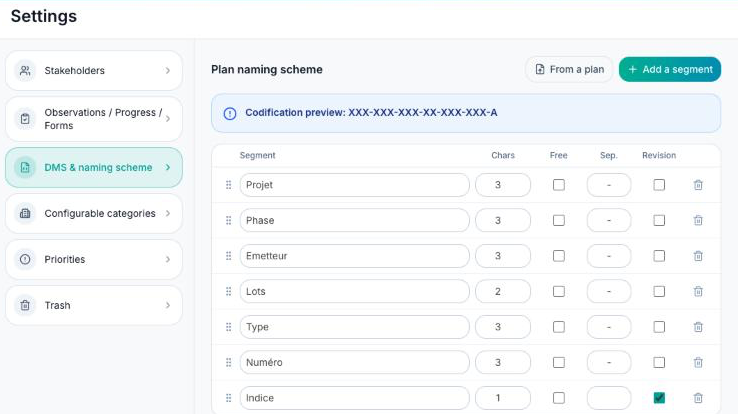
Click “Add a segment” for each part of the name, and fill in the columns:
- “Segment”: the segment name (Project, Phase, Issuer…). It is also the column name in the CDE table;
- “Chars”: the exact number of characters;
- “Free”: tick it if the length varies (the segment is then read up to the next separator);
- “Sep.”: the separator placed after the segment (“-” by default), leave it empty for the last one;
- “Revision”: tick it on the segment that holds the plan revision.
Reorder the segments by dragging the handle on the left, and check the result in “Codification preview”.
Click “Save naming convention”.
The quickest way: click “From a plan” and choose a correctly named plan. FunBIM splits its name into segments; you only need to name them and tick the revision, then “Create codification”. The file is not uploaded, only its name is read.
If you change an existing naming convention, plans that no longer follow it are hidden from the table and listed under “Rename”. Nothing is deleted: they come back once renamed.
Approval deadlines
At the bottom of the same tab, “Approval deadline” (days given to approvers to review a plan after it is distributed) and “Response deadline” (days given to the issuer to respond) turn on delay tracking: the “Approval delay”, “Response delay” and “Total delay” columns appear, and late plans are highlighted in red.
The same tab also holds the plan approvers and plan statuses (see “How do I add plan approvers?” and “How do I set up plan statuses?”).
Settings are only available to members who can configure the project.