At the start of a project, you can create the whole list of expected plans at once from an Excel file. Each row becomes a plan without a file; the PDFs are then attached automatically when they are imported, based on their naming code.
Preparing the file
- One column per segment of the naming convention, with exactly the same name as in the settings (for example Project, Phase, Issuer, Trade…). Upper case and accents do not matter.
- Optional: a “Title” (or “Designation”) column for the plan title.
- Optional: a “Due date” column: Excel date, dd/mm/yyyy or dd/mm/yy.
- Optional: a “Subtasks” column, subtasks separated by a comma, a semicolon or a line break.
The header row can be anywhere in the first ten rows of the sheet. Other columns are ignored. If your headers do not match, you can map them by hand during the import.
Tip: the CDE “Export” button produces an Excel file with the right columns. Start from this export to prepare your list.
Importing the list
In the CDE, click “Import”, then “Import plan list (Excel)”.
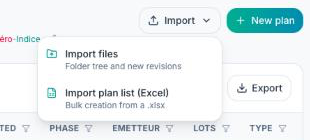
Pick your .xlsx or .xls file.
If the column names do not match the segments, the “Map the columns” window opens: choose for each segment the matching column of the file (a sample value is shown), then click “Continue”.
Check the preview (naming code, title, due date, subtasks), then click “Import N plans”.
Plans already in the table are skipped by default; tick the box offered to import them anyway.
The new plans show a red cross in the “File” column until a PDF is attached. Then import the PDFs with “Import files”: those whose name matches a plan's naming code are attached to it (“Attachment” badge).