When a plan is updated, import the new version as a new revision: it replaces the previous one in the table, and the old one remains available under “Previous revisions”.
From the plan row
In the CDE, right-click the plan row, then click “New revision”.
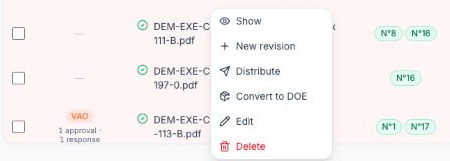
Pick the PDF of the new revision on your computer: the import starts right away.
From the plan panel
Click the plan row to open its panel, then the three dots at the top right and “New revision”.
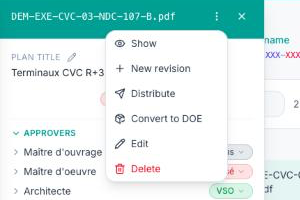
You can also click the number in the “Previous revisions” column, then “+ New revision”.
Naming the file
Name the PDF according to the project's naming convention, with the new revision letter (for example “…-105-B.pdf” to follow “…-105-A.pdf”): the revision column is then updated. If the name does not follow the naming convention, the file still becomes the new revision, but the plan keeps its current naming code.
You can also drop the file into “Import” → “Import files”: FunBIM recognises the plan from its name and shows the “New revision” badge. This is handy to import several revisions at once.
To see what changed between two revisions, open the plan panel and click “View differences”.