On the “Files” page, you can keep several plans open at the same time and switch from one to another in one click, just like in a web browser. Tabs are available on the computer and on tablet.
Open a first plan
In your project, open “Files” in the left-hand menu, then click a plan in the tree: it is displayed on the right.
Open a second plan in a new tab
Right-click another plan, or click the three dots ⋮ at the end of its row, then choose “Open in a new tab”. On tablet, tap the three dots ⋮ of the plan.
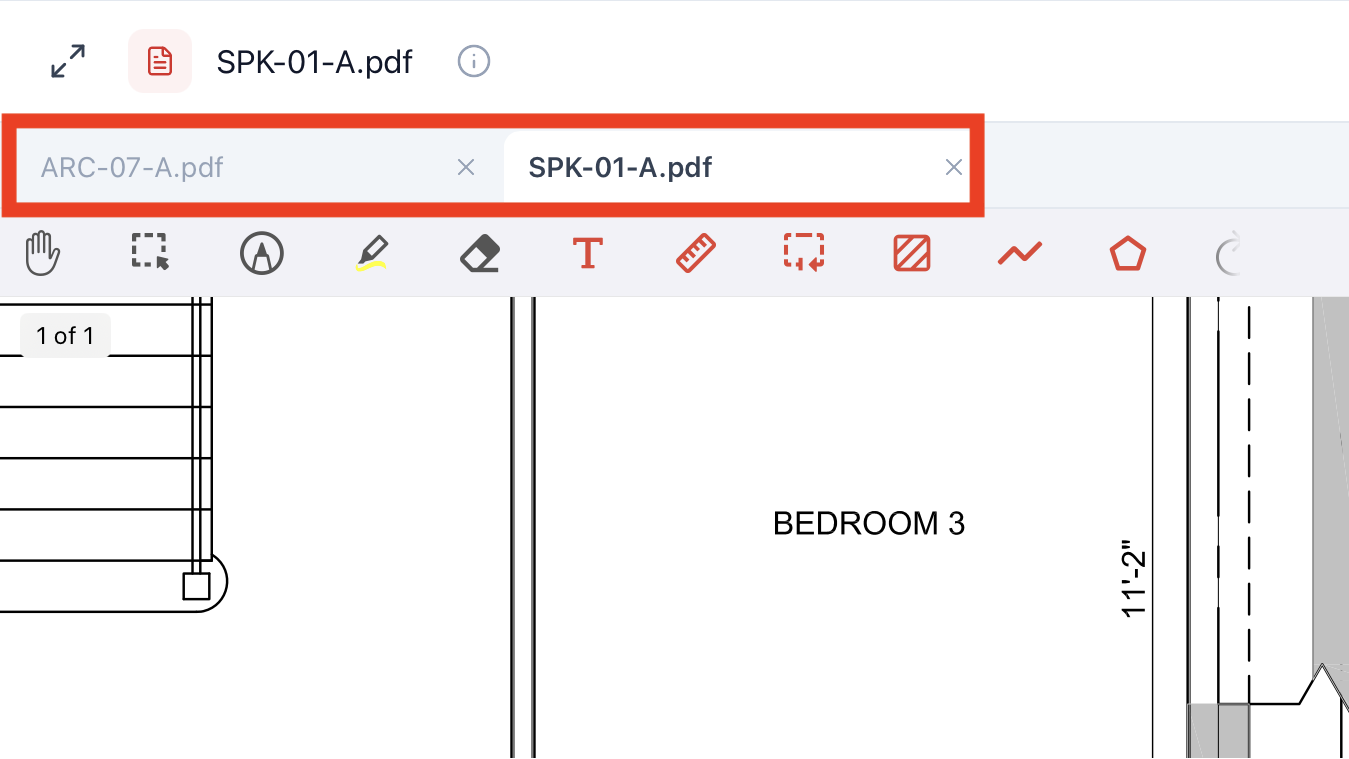
A tab bar appears above the plan: the plan already open becomes the first tab, and the new one is added to its right.
Switch from one plan to another
Click a tab to display its plan. Each tab keeps its zoom and position: you find the plan where you left it. The cross to the right of the name closes the tab.
Good to know
- A simple click on a plan in the tree replaces the plan of the active tab, just like in a web browser. Only “Open in a new tab” adds a tab.
- If the plan you ask for already has its tab, FunBIM switches to it instead of creating a second one.
- The same plan can take up two tabs: choose “Open in a new tab” on the plan already displayed. The second tab shows the plan name followed by (2). Handy to keep two areas of a large plan at hand.
Tabs are kept, project by project, as long as you do not reload the page (or close the app on tablet). They are neither saved nor shared with the other project members.