Open the project, then “Files” in the left-hand menu. Your folder tree appears on the left, and the selected plan is shown in the centre.
Click “Import files” (or simply drag your files and folders from your computer into the window).
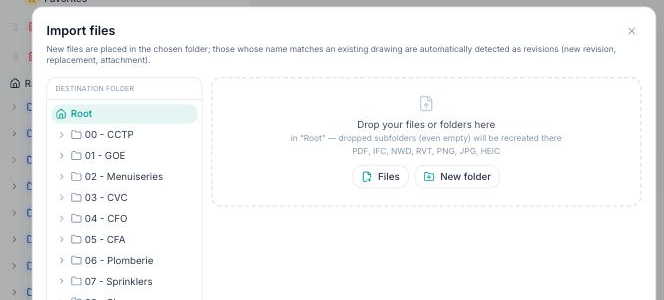
In the import window:
- Drop your files or folders into the drop area — dropped subfolders are recreated exactly as they are, even empty ones.
- Choose the destination folder in the tree, or create one with “New folder”.
- Files whose name matches a plan already present are automatically detected as new revisions (see the next question).
- Click “Import”.
Accepted formats: PDF plans and documents, images, spreadsheets, archives, and 3D models (IFC, RVT, NWD, GLB), which are converted for the 3D viewer after the import.
On a tablet, importing works the same way from the “Files” screen, using files from the device or the cloud.