A distribution transmittal lists the plans sent to each recipient and the number of copies. FunBIM generates it as a PDF and numbers it automatically.
1
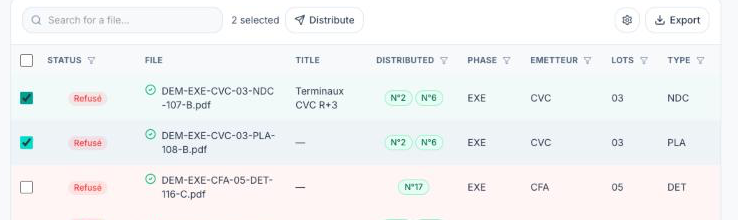
In the CDE, tick the plans to distribute, then click “Distribute” above the table. For a single plan, you can also use “Distribute” in its right-click menu or in its panel.
2
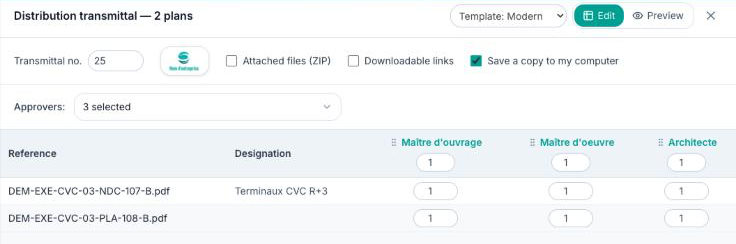
In the “Distribution transmittal” window, check the transmittal number (the next one is suggested) and, if needed, add your client's logo.
3
In “Approvers”, choose the recipients among the project approvers.
4
Enter the number of copies per recipient: the box under a column name applies to all plans, then each cell of the table can be adjusted.
5
Tick the options you need:
- “Attached files (ZIP)”: the plans are gathered in an archive attached to the transmittal;
- “Downloadable links”: the transmittal PDF contains a download link for each plan, valid for the number of days shown;
- “Save a copy to my computer”: the PDF is downloaded when you save.
6
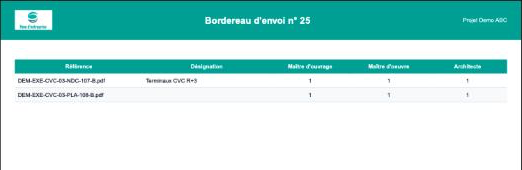
Choose the template (Modern, Classic or Compact) and click “Preview” to check the result.
7
Click “Save transmittal”.
Finding a transmittal
Distributed plans show the transmittal number (“N°25”) in the “Distributed” column: click it to open the PDF. In the plan panel, “Tracking” section, the arrow next to the number also lets you “Show” or “Delete” it.
If you close the window without saving, your settings are kept: the “Resume transmittal” button appears above the table.