Find all your observations as a list on the Observations page. With the new “By drawing” button, you can now track them plan by plan.
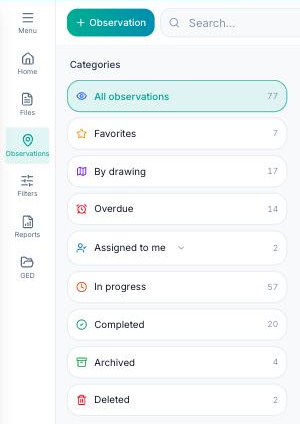
Observations page with the By drawing category in the list of categories

Each row is a plan, and each column an observation type, such as the plan's overall progress for example.
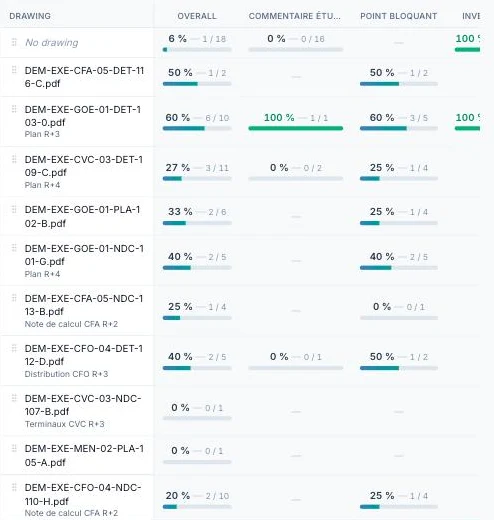
By-plan table: one row per plan, and one column per observation type with the percentage handled

The last row gives the total per type, across all plans.

Total row at the bottom of the table, with the percentage and number of observations handled for each type

The table adapts to your needs. You can show or hide columns by clicking the small cog.

Buttons at the top right of the table: the cog for columns and the export button

Tick or untick the eye next to a column to show or hide it.
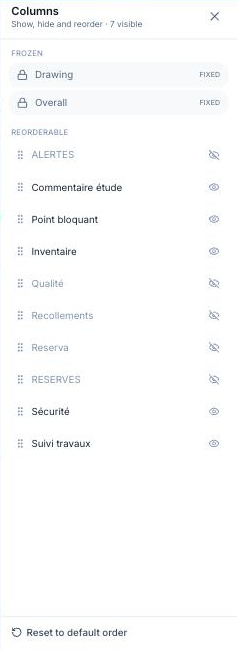
Columns panel with the list of columns to show, hide and reorder

You can also filter by trade, by plan or by period.

All drawings, All trades and All periods filters above the table

To reorder the plans, simply drag and drop them.
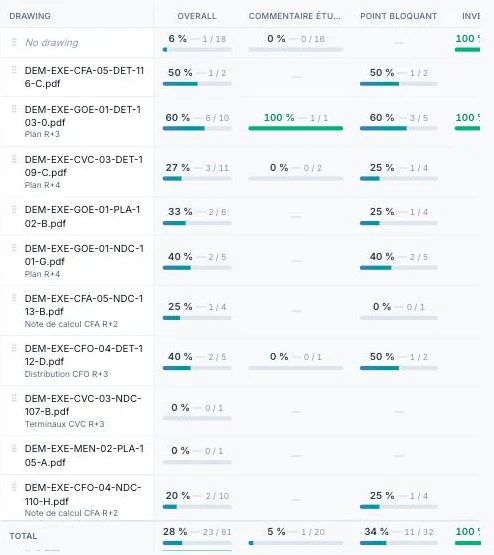
A plan row moved by drag and drop to change the order of the plans in the table

You can also rename a plan: right-click the plan, then click “Rename plan”.
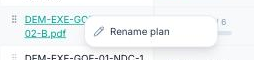
Right-click menu on a plan with the Rename plan option
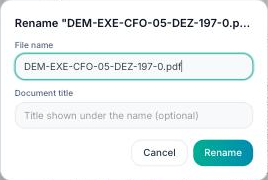
Rename window with the file name and the optional document title

Finally, you can export the table to Excel or PDF from the button at the top right.
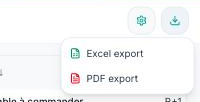
Export menu with the Excel export and PDF export options