The history shows how progress has evolved over time: what was installed each day, the average rate, and where you stand compared with what was planned.
Open Progress
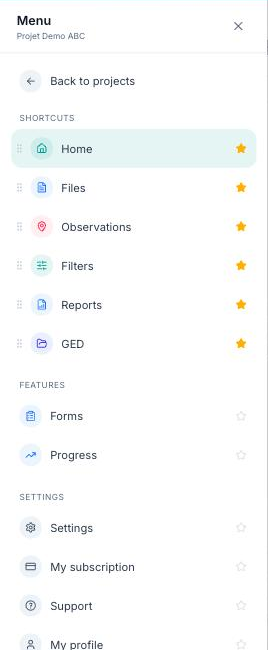
Open the Menu, then click “Progress”.
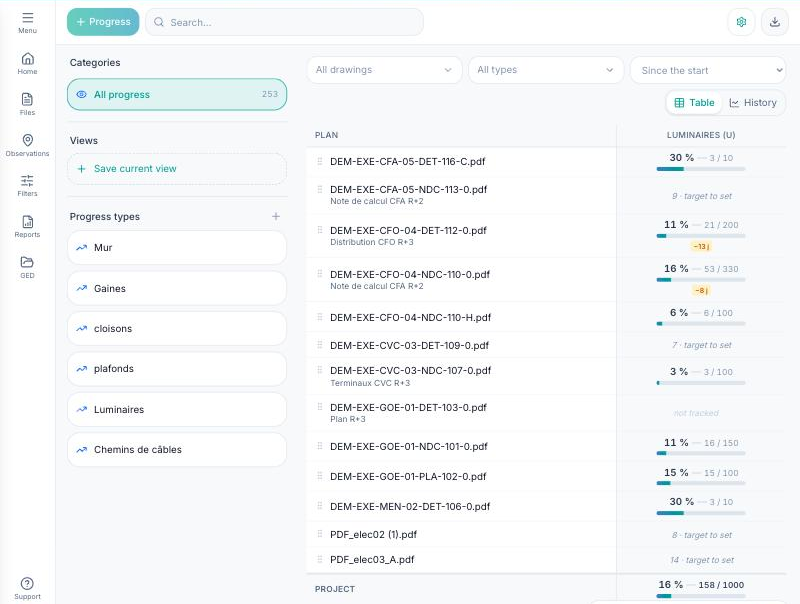
The Progress page opens on the Table view: one plan per row, one progress type per column, and each plan's overall percentage.
Switch to the “History” view
At the top right of the table, click “History”.
Choose what you want to see
Use the filters at the top of the page:
- Plan: all plans or one specific plan;
- Type: the progress type, for example light fittings;
- By: everyone or a single person;
- Period: the cumulative total since the start, or a specific period (last 7 days, this week, between two dates…).
You can also click a type directly in the left-hand column.
Read the history
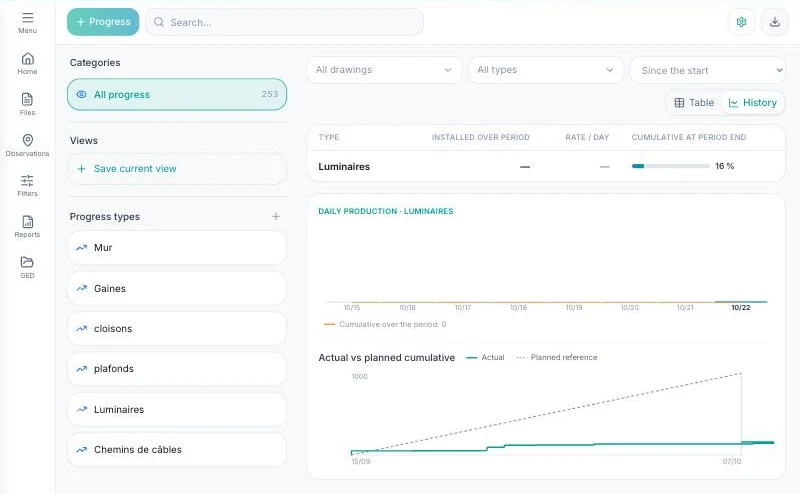
The History view is made up of three blocks:
- The summary: quantity installed over the period (here +54 u), average daily rate (7.71 u) and cumulative total at the end of the period (27 %);
- Daily production: what was installed each day, with the cumulative curve over the period;
- Actual vs planned cumulative: actual progress compared with the planned baseline (dotted line), to see at a glance whether installation is ahead or behind schedule.
Each markup is time-stamped with the person's name. The quantity installed over the period is calculated automatically from the quantities moved to the Installed status: no extra entry needed.
You track progress day by day, for the whole team or for one person, on the progress type of your choice.