No need to go through the plan: from the progress table, you enter the quantity installed during the day and the plan's percentage, like the project's, updates immediately.
Open Progress
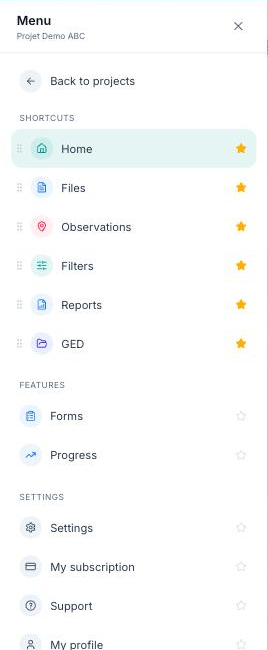
Open the Menu, then click “Progress”.
Choose the progress type
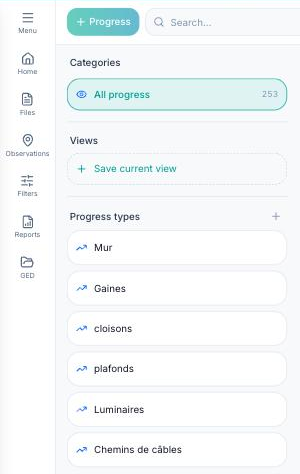
The Progress panel opens. In the left-hand column, under “Progress types”, click the type to update, for example “Light fittings”.
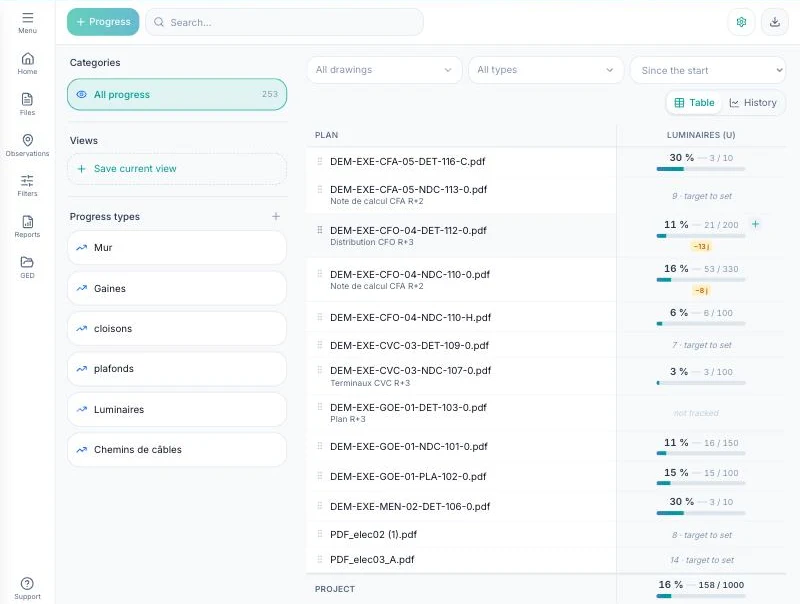
The table now shows only this type (the “Type” filter at the top updates). Each row is a plan, with its percentage and the quantity installed against the objective (e.g. 1 / 200).
Click “+” on the plan row
Find the plan to update and click the “+” (“Add progress”) to the right of its percentage.
Enter the quantity completed
The “Add progress” window shows the type and plan concerned. Two options:
- “Draw on the plan”, to draw the progress directly on the plan;
- or enter the quantity by hand: fill in the quantity completed (here 20 u) and the status (here Completed).
Click “Add”.
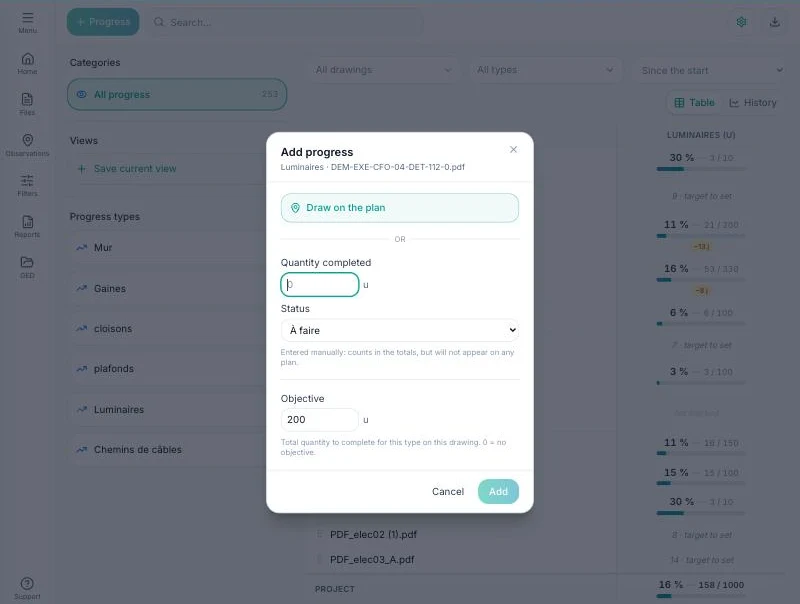
A quantity entered by hand counts in the totals, but does not appear on any plan.
Check the new percentage
The row updates right away: the plan goes from 1 / 200 to 21 / 200, i.e. 11 %. The “Project” row, at the top of the table, also includes the new quantity.

Good to know: if installation start and end dates are filled in, FunBIM calculates the expected rate and shows an ahead or behind badge under the percentage (e.g. “-9 d”). A percentage in orange means the plan's objective has been exceeded.
Your plan's progress percentage is up to date, without opening the plan.