A progress type (cable trays, HVAC ducts, partitions…) defines what you track on your plans and how it is counted: in linear metres, in units or in area. It is set up in the project settings.
1
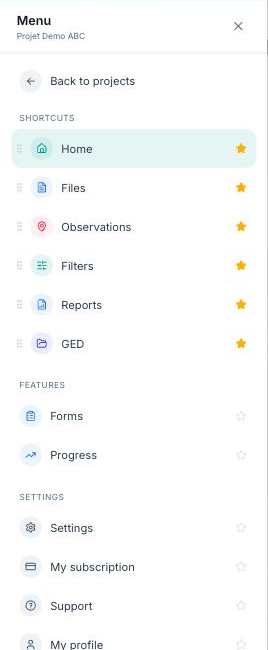
Open the settings
Open the Menu in the sidebar, then click “Settings”, in the Settings section.
2
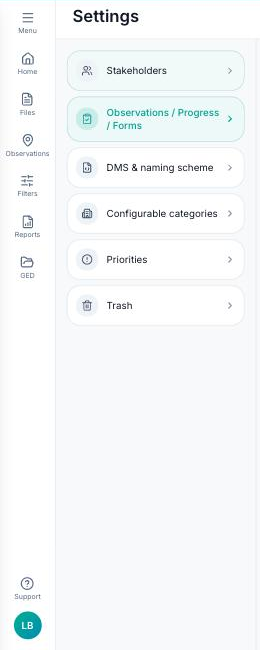
Go to “Observations / Progress / Forms”
In the list of settings, click “Observations / Progress / Forms”.
3
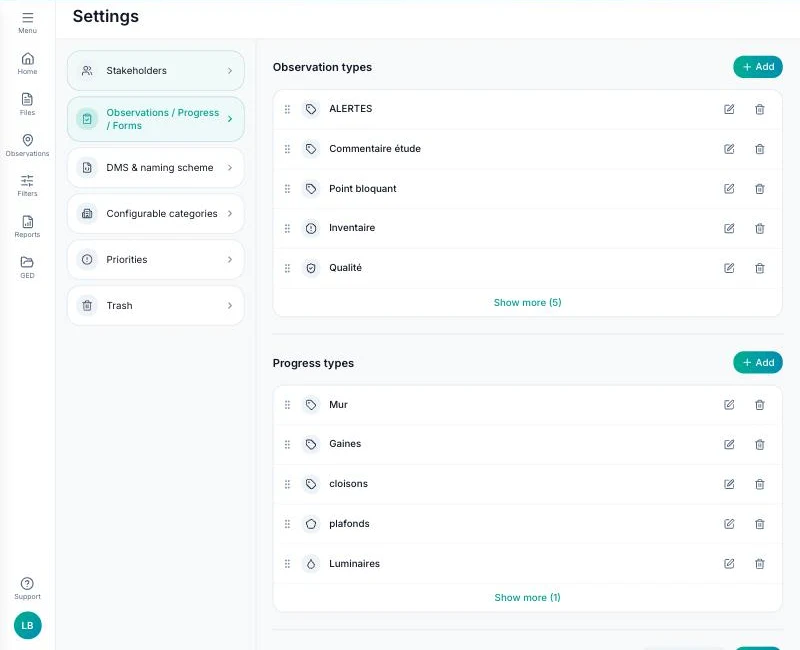
Add a progress type
The page shows three sections. In “Progress types”, click “+ Add”.
4
Configure the type
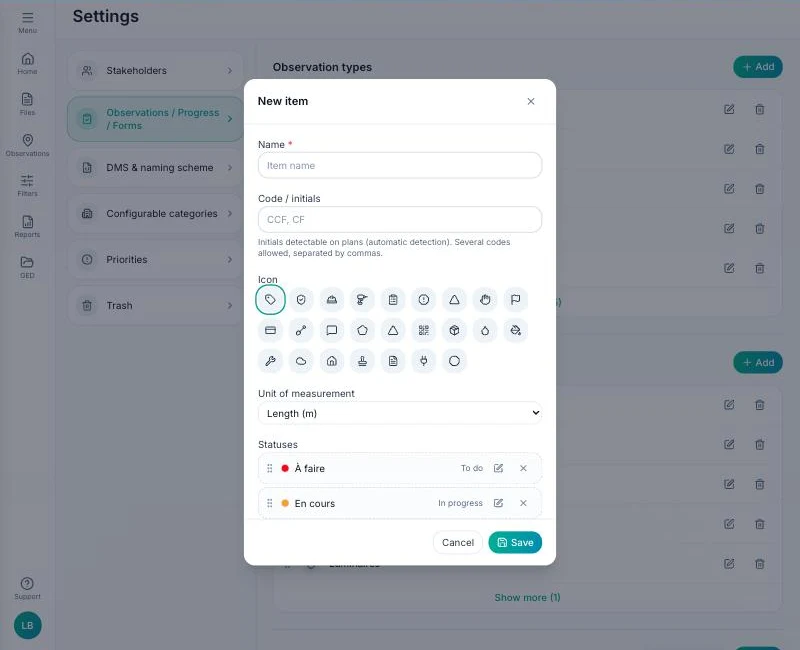
The “New item” window opens. Fill in:
- The name (required), for example “Cable trays”;
- The code / initials: the initials that identify this work item on your plans, for automatic detection. You can enter several, separated by commas (e.g. CCF, CF);
- The icon shown on the plan;
- The unit of measurement: length (m), unit or area (m²), depending on how the work item is counted;
- The statuses (To do, In progress, Installed, Checked…) with their colour. Drag and drop to set their order.
Click “Save”.
5
Find the type on a plan
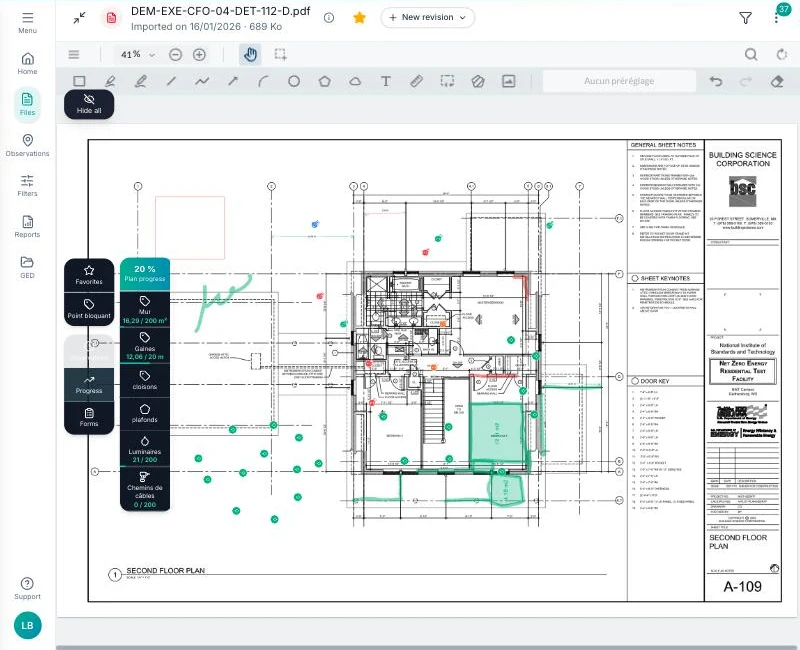
Open a plan in Files, then click “Progress” in the plan toolbar. Your new type appears in the list, next to “Plan progress” and the project's other types.
Your progress type is ready: your teams can place it on the plans and track progress.