Once a widget has been added to your dashboard, you can enlarge, shrink, edit or move it. Here is how to adjust its size and position.
Enlarge or shrink a widget
Open the widget menu
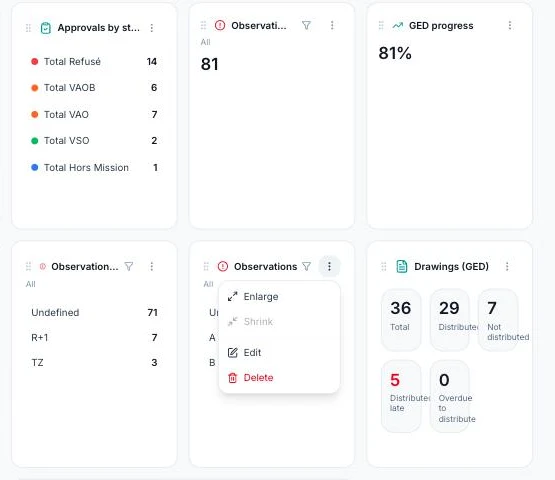
At the top right of each widget, click the three small dots ⋮.
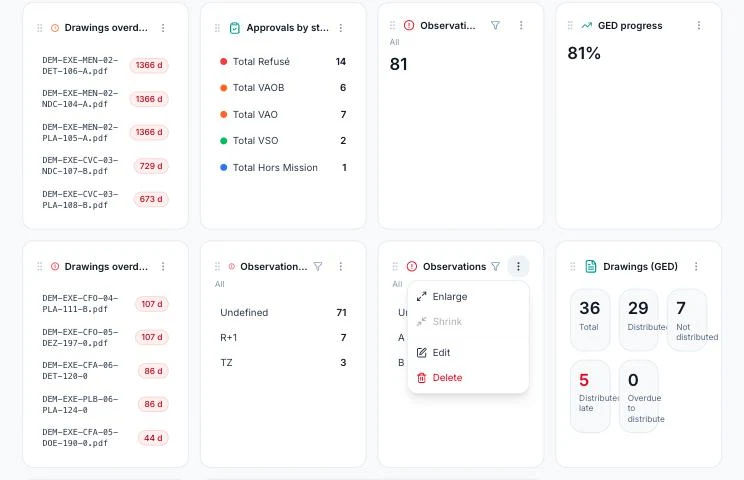
Enlarge or shrink
A small menu opens. Click “Enlarge” to give the widget more room, or “Shrink” to make it smaller. The dashboard rearranges itself automatically.
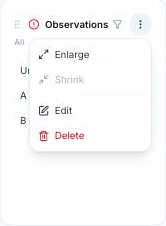
Repeat to go from one size to another.
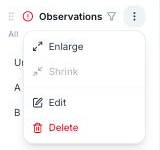
If “Enlarge” or “Shrink” is greyed out, the widget has already reached its maximum or minimum size.
Move a widget
Grab the handle
At the top left of each widget, next to its title, there is a ⋮⋮ handle. On hover, the “Drag to reorder” tooltip appears. Click it and hold the mouse button down.
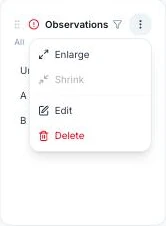
Drag the widget to its new position
Drag the widget to the spot you want on the dashboard. A green bar shows where it will go: release to confirm.
The widget takes its new place and the other widgets adjust around it.
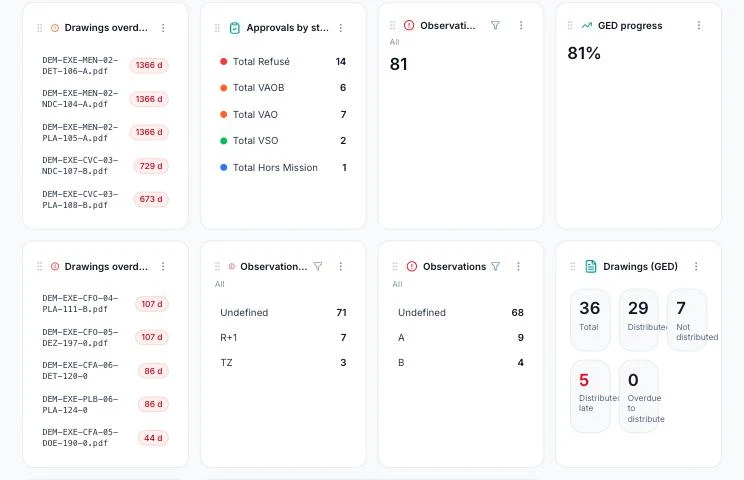
Your dashboard is organised: each widget has the size and position you chose.