The FunBIM dashboard can be customised: you choose the widgets shown on your project's home page, then enlarge, shrink and move them as you wish. Here is how to add a widget.
1
Click “New widget”
On your project's home page, the “New widget” button is right next to the project name. Click it.

2
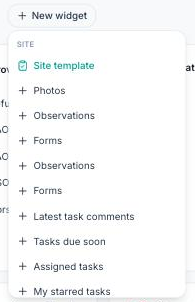
Choose the widget
The list of available widgets opens, grouped by theme:
- Site: Photos, Observations, Forms, Latest comments, Tasks due soon, Assigned tasks, My starred tasks…;
- Summary: Activity feed…
Scroll through the list if needed, then click the widget to add, for example Photos.
3
Customise and create
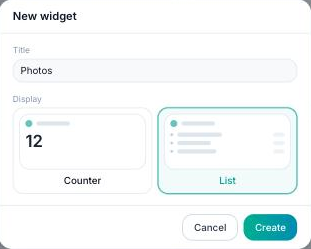
In the “New widget” window, fill in:
- The title: shown at the top of the widget (pre-filled, editable);
- The display: Counter to see a number at a glance, or List to see the details of the items.
Click “Create”.
Your widget appears on the dashboard. You can then enlarge, shrink or move it.