The menu brings together all of FunBIM's features. You can add the ones you use most as shortcuts, to open them in one click, then arrange them in the order that suits you.
Open the menu
The menu is in the sidebar, on the left of the screen. Click “Menu”, at the very top. Below the menu, the bar shows your shortcuts (here Home and Files).

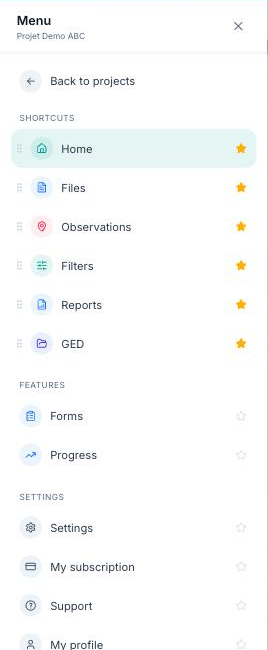
The menu opens with the full list, organised in three sections:
- Shortcuts: your favourite features, also shown in the sidebar;
- Features: Observations, Forms, Progress, Reports, Filters, GED…;
- Settings: project Settings and My subscription.
Add a feature to your shortcuts
Click the star ☆ to the right of the feature. The star fills in ★ and the feature joins the Shortcuts section.
Once the menu is closed, it appears directly in the sidebar: no need to go through “Menu” to open it any more.
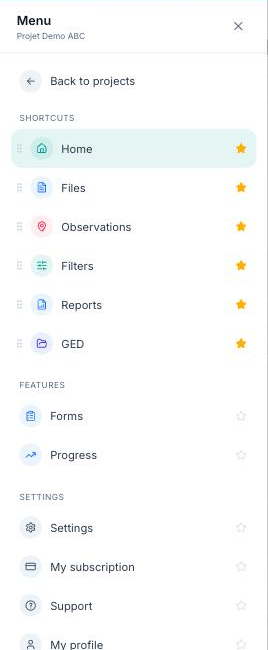
To remove a shortcut, click its star again.
Change the order of your shortcuts
In the Shortcuts section, grab the ⋮⋮ handle to the left of a feature, then drag it up or down. A green line shows where it will go: release to confirm.
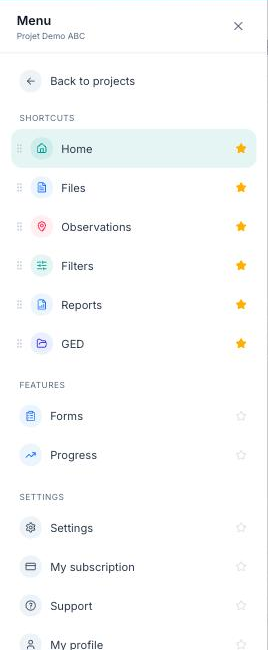
The sidebar follows the same order.
Your menu is set up: your key features are one click away, in the order you chose.